
Manage RSVPs with ease
Once you have imported guests into Vesavo, you will want to keep track of their RSVPs. Guests respond through your **event website** — a branded page Vesavo creates for every event where invited guests can RSVP, manage dietary requirements, add +1s, and browse the gift registry (if enabled).
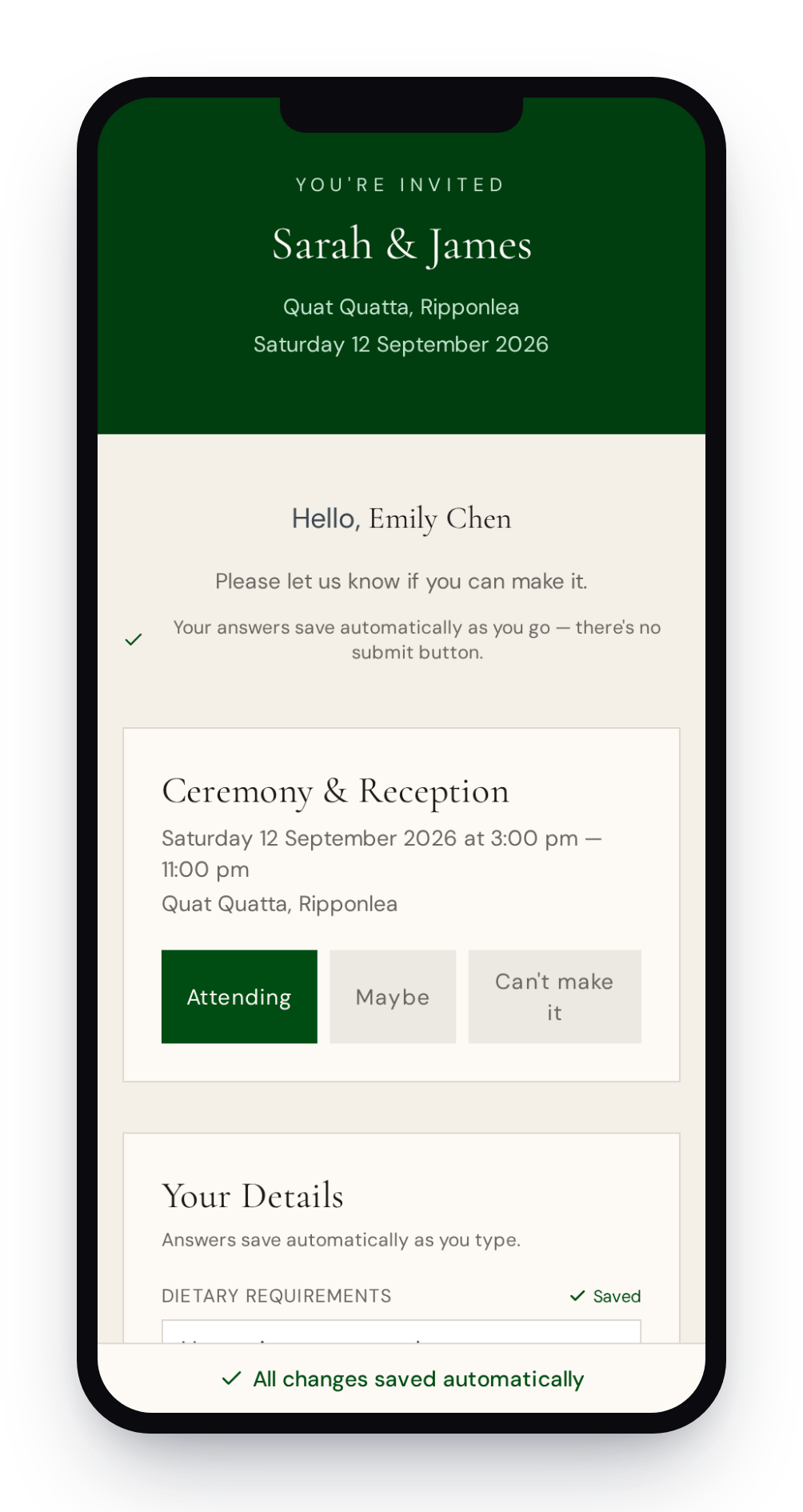
Details added to the RSVP section of the website are saved automatically. This is done so as to not miss any RSVPs - for example, if someone were to select "Attending" and they were expecte do press a "Submit" button but didn't see it, they may not realise that their RSVP wasn't recorded properly. As such, there's no Submit button, and all changes are automatically saved.
RSVPs to Functions
Vesavo has the concept of "Functions", which are sections of an event that happen throughout the day (or days). For example, with a Wedding, there might be a Function for the Ceremony, Afternoon Tea and Reception. In this example, the Event is the Wedding, and the Functions are the Ceremony, Afternoon Tea and Reception.
As such, guests are invited to each Function and can RSVP to each Function.
If when creating an event you indicated that it was just a single Function, a function will be created automatically for you and any guests you add to the event will be invited to that Function.
Record RSVPs Manually
You can record RSVPs manually for any guest. For example, there may be guests that don't want to RSVP through the event website, or have limited access to the internet. You can do this by going to "Functions > (Select Function) > Find the Guest > Change from 'Invited' to their RSVP status".
RSVP with dedicated Guest Link
When you send out an email, you have the option of including a link for that guest to RSVP. When the guest clicks on the RSVP link, they will be taken to their event website to RSVP. It will ask them to supply an RSVP status for each Function.
RSVP with Event Link or QR code
If you want to send out physical invitations, you can include a URL or QR code to RSVP. This will take guests to the event website, where they can search for their name and RSVP. This is useful if you want to print out invitations in bulk and aren't able to include a different URL for each guest. Once they have found their name, their experience will be the same as if they had clicked on a dedicated Guest link.
This feature can be toggled off, as it may not be suitable for all events. For example, anyone with this link could potentially put in the name of any other guest, and find out if they are invited and what they are invited to. It is up to you to decide if this feature is right for you. For example it is likely to be appropriate for a medium-sized wedding where everyone can be trusted. Axianda Pty Ltd is not responsible if anyone who gets the link submits incorrect information, or discovers information about other invitees that they shouldn't have access to.
Shared RSVPs for groups
When you define a group, you can toggle whether they will have "Shared RSVPs". When this is turned on, any guest in that group can RSVP for all the guests in the group. This is suitable for families. When it is disabled, each guest will need to RSVP individually, which is more suited towards friend groups.