
Give guests a single QR at the door so they can look up their table on their phone — and watch arrivals update live in Vesavo.

Day-of chaos often starts at the door: paper lists, shouted table numbers, a host who knows everyone’s name. Vesavo’s find-your-seat flow replaces that with one QR code. Guests search their name, see their table, and you see check-ins as they arrive.
Use this when seats are assigned and you’re ready for the venue entrance.
Want to turn this guide into a real seating chart in minutes?
Vesavo handles messy guest lists and builds smart table arrangements automatically. Free for up to 50 guests.
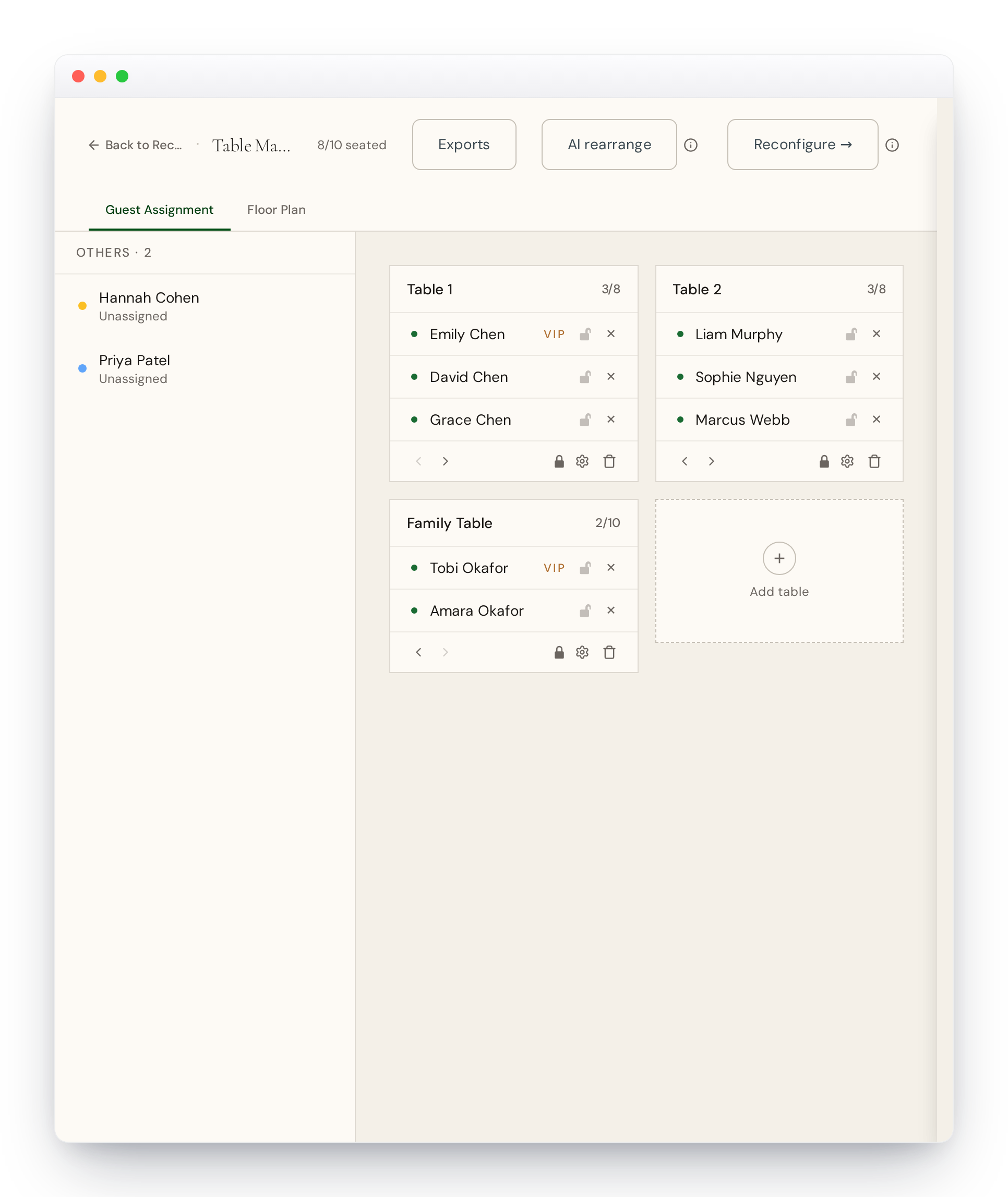
Finish seating for the function guests will attend
Find-your-seat only helps if the plan is in the system. Assign tables for the dinner (or whichever function uses the QR), including plus-ones who share a seat or table. Guests with no table will see an incomplete result, so make sure to have everyone seated by the time of the event. However, you can print off the QR code signage at any time, and it will always show the most recent plan.
Turn on the guest-facing link for that event
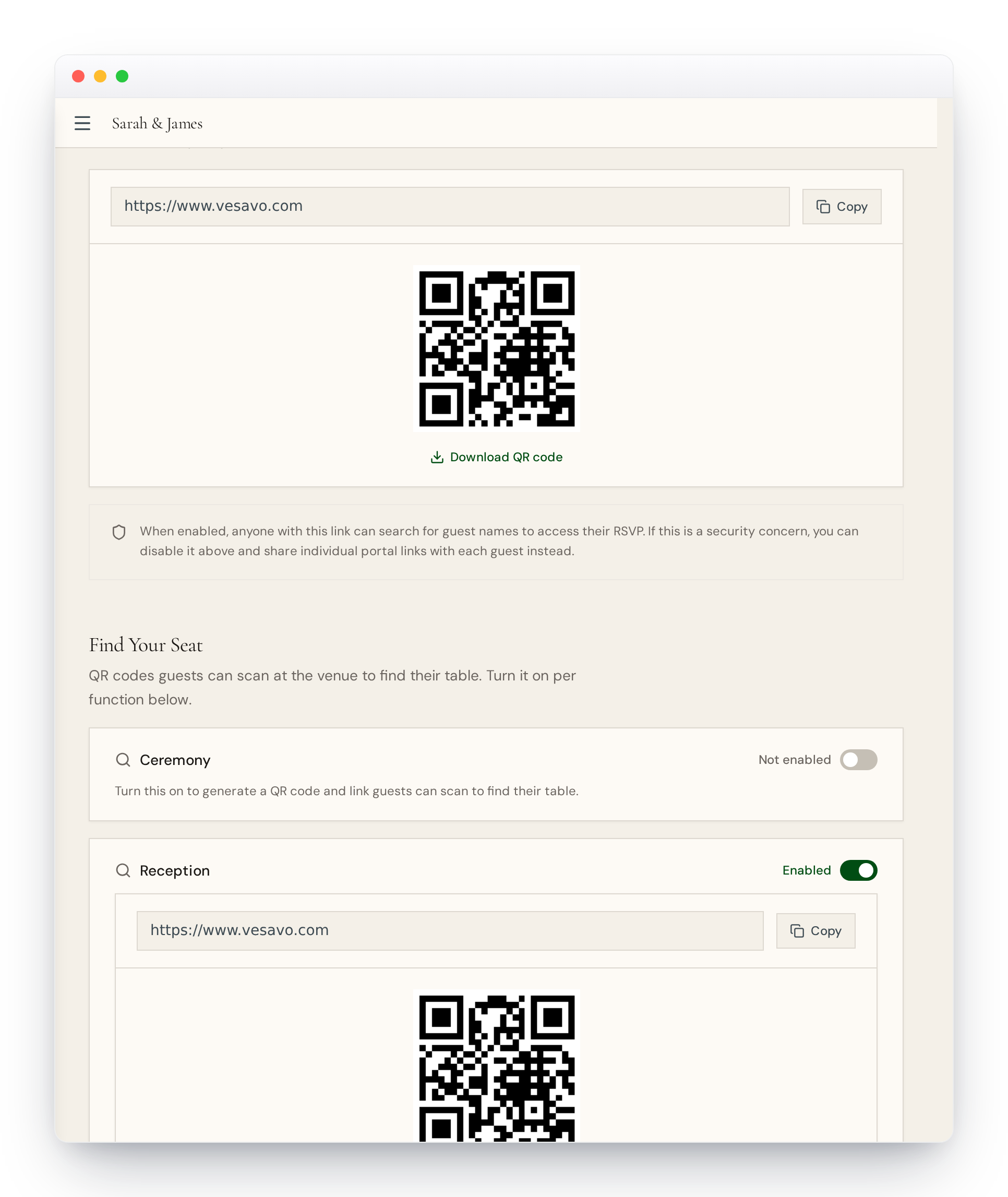
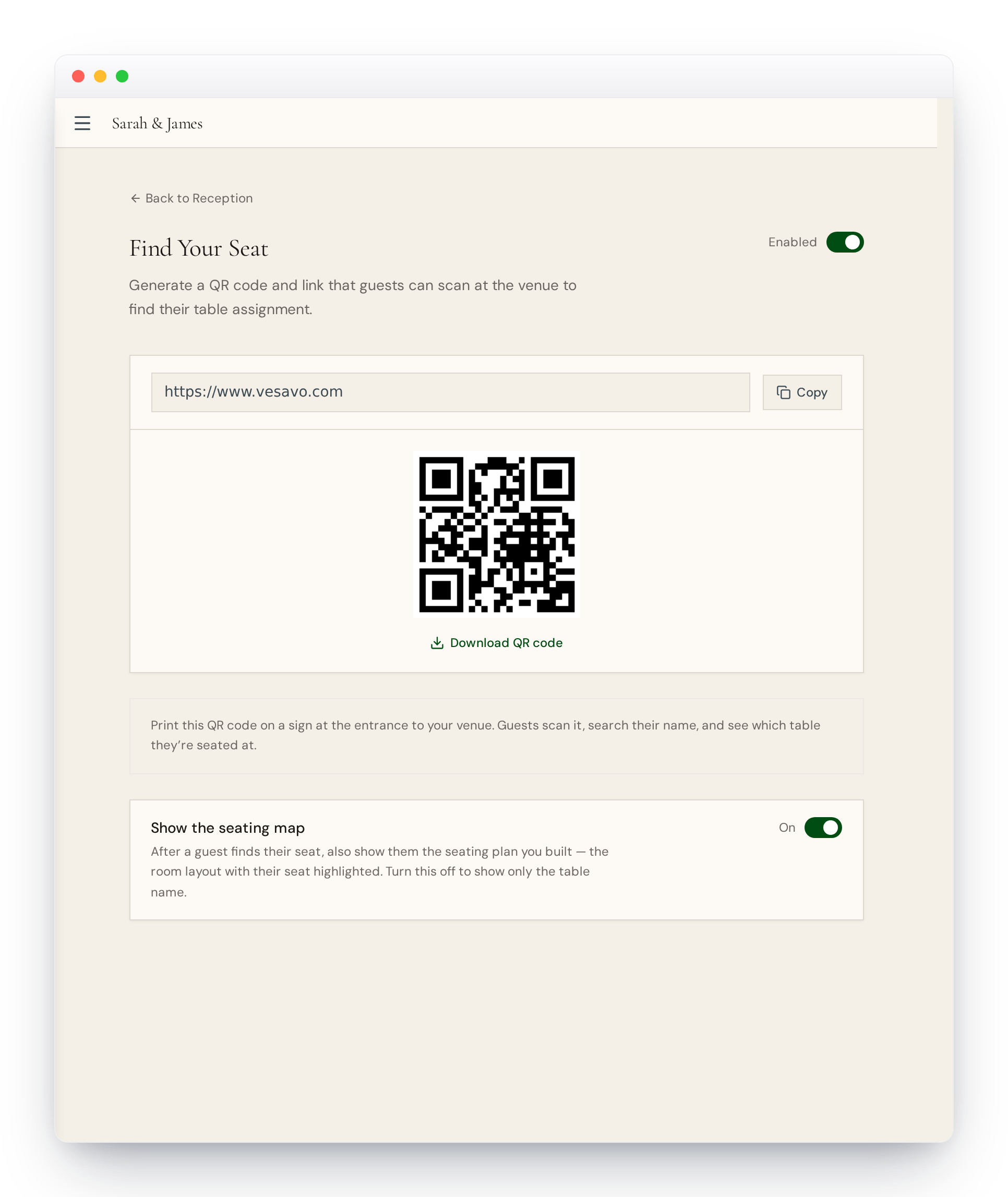
In Vesavo, open Links & QR Codes (or the function’s Find Your Seat page) and enable Find Your Seat for the function guests will scan at — typically the reception. Copy the public link Vesavo generates. That URL is what the QR encodes — test it on your phone before you design anything.
Create QR signage (Canva, print, or poster)
Generate a QR code that points at the Vesavo guest link, or use Vesavo’s export-to-Canva / print flows if you’re already producing entrance signage there. Print large enough to scan from a metre away; put a short line of copy like “Scan to find your seat” so guests know what to do.
Place the QR at the entrance and brief the team
Put one clear code at the main door (and a backup at the bar or seating chart board). Tell ushers the fallback: if someone’s name isn’t found, check spelling, plus-one under a partner’s surname, or the paper list for walk-ins you haven’t entered yet.
What guests see on their phone
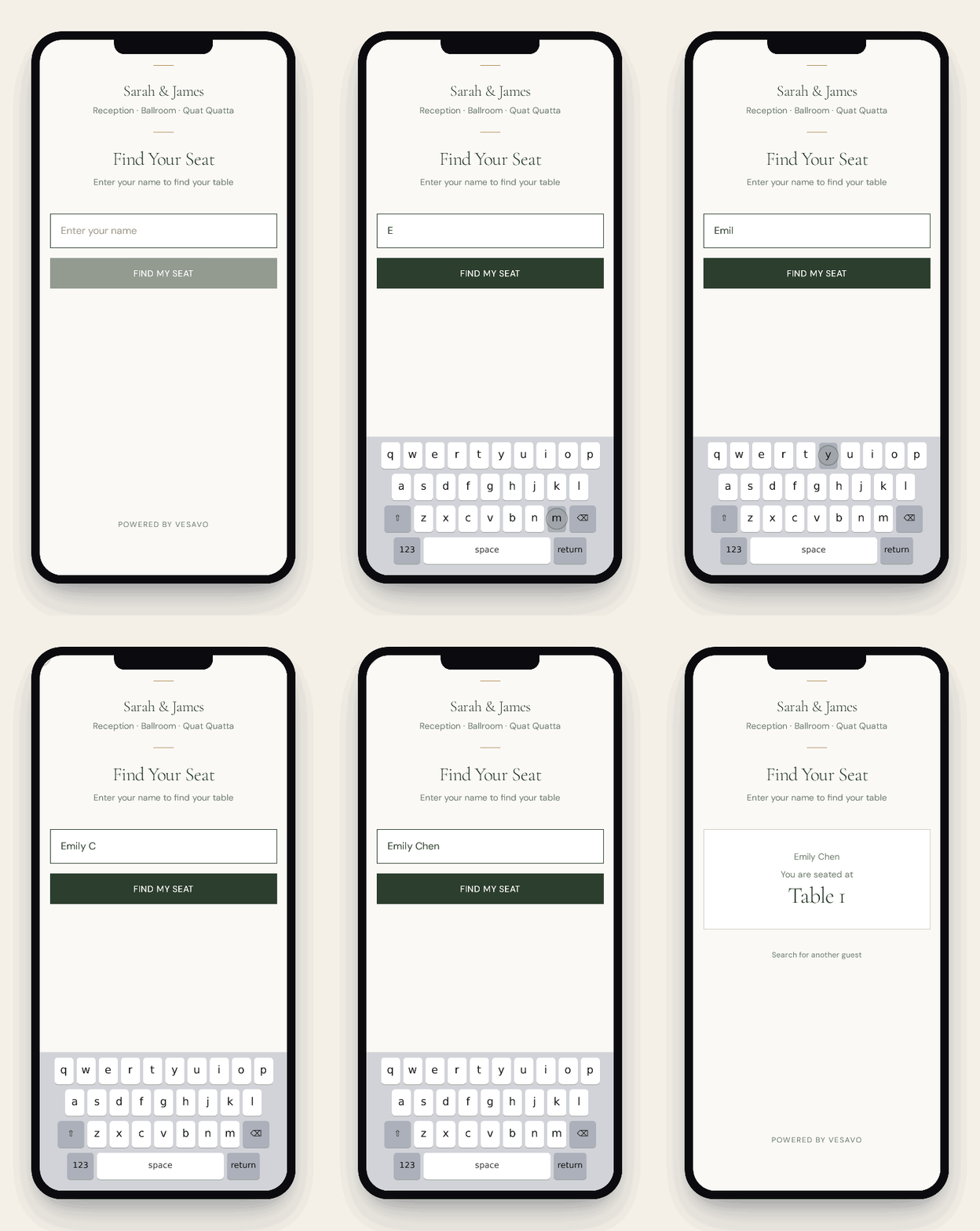
Guests land on a simple search screen, type their name, and get their table — no app install, no account.
Watch arrivals live during the event
If you have the check-in feature enabled, as guests arrive and check themselves in, you can watch activity in the host view. Use it to see who’s checked in, who’s still arriving, and whether a table is short a guest. That’s useful for meal counts and for calm, not for policing people at the door.
Camera and Gallery
This QR code takes users to the "Day-of" website and directs them to search for a seat. If you have the Guest Camera feature enabled, users can use this same website to switch over to the camera. It's also possible to get a dedicated QR code that takes guests directly to the camera. Same "Day-of" website, but different QR codes can send the user directly to different tabs on the website.
Skip the spreadsheet struggle
Upload your guest list in any format. Vesavo's AI organises names, detects groups, and seats guests at tables that actually make sense — in seconds.
Start Your Seating PlanFree for events up to 50 guests